Church Communication Guide
How to Check Guests In at the Door With WhatsApp Entry Passes
Doors open at 6. By 6:05 there's a line out to the parking lot. One volunteer has a clipboard, another has a printed list in tiny type, and every guest gets the same question: "Sorry, what was the last name again?"
The door is where an event feels organized or not. It's also where most events still run on paper.
Why the paper list slows everything down
- Searching a printed list takes time, and the line grows with every "Is it with a K or a C?"
- Only one person can hold the list, so you can't open a second line.
- People who changed plans are still on it, and new RSVPs aren't.
- There's no record afterwards of who actually came.
- A shared spreadsheet on a laptop means someone has to guard the laptop, and it shows everyone's phone numbers.
What you want is for every guest to carry their own pass on their phone, and for your door team to check it in a second with their own phones.
How to do it with MsgOrb on WhatsApp
When guests RSVP to your event through MsgOrb, each one gets a personal entry pass with a QR code on WhatsApp. On the day, your door team uses a door link that turns their phone into a scanner. There's no app to install, no login and no laptop.
1. Set up the event and share the RSVP link
Open RSVP & Check-in, click New event, fill in the date, start time and venue, and click Start collecting headcount. Share the RSVP link on WhatsApp. Every guest who RSVPs gets their entry pass, with a QR code and an 8-character code such as K7Q2-XB9M.
2. Send the door link to your door team
On the event's page, find the Door check-in section. Click Send on WhatsApp to send the door link straight to your volunteers, or Copy link to paste it anywhere.
Send it to everyone working the door. They can all use the same link at the same time, so you can open two or three lines when it gets busy.
3. On the day: scan
Each volunteer opens the door link on their phone and taps Start scanning. They allow the camera when the phone asks. Then, for each guest:
- The guest opens their pass with the Open entry pass button in their WhatsApp message.
- The volunteer points the camera at the QR code.
- The result appears, and the volunteer taps Scan next.
Here's what the colors mean:
- Green with the guest's name and party size: let them in.
- Red, Already checked in, with the time: this pass was used before. Check with the host.
- Red, Said they can't come: the guest changed their answer. Check with the host.
- Red, Not on the list: the pass isn't for this event.
Each pass works once, so a screenshot can't be passed around to get extra people in.
4. When the camera won't cooperate
Bright sun, a cracked screen, an older phone: it happens. Tap Type a code instead, enter the 8-character code printed under the guest's QR (dashes and capital letters don't matter) and tap Check.
5. Fix the little problems from your dashboard
- A guest lost their pass? Find them on the guest list and use Pass link to send it again.
- Someone was checked in by mistake? Use Undo check-in and their pass works again.
- The door link got shared too widely? Click Replace link. The old one stops working right away. Send the new one to your team.
The door link closes by itself the day after the event.
What your guests receive
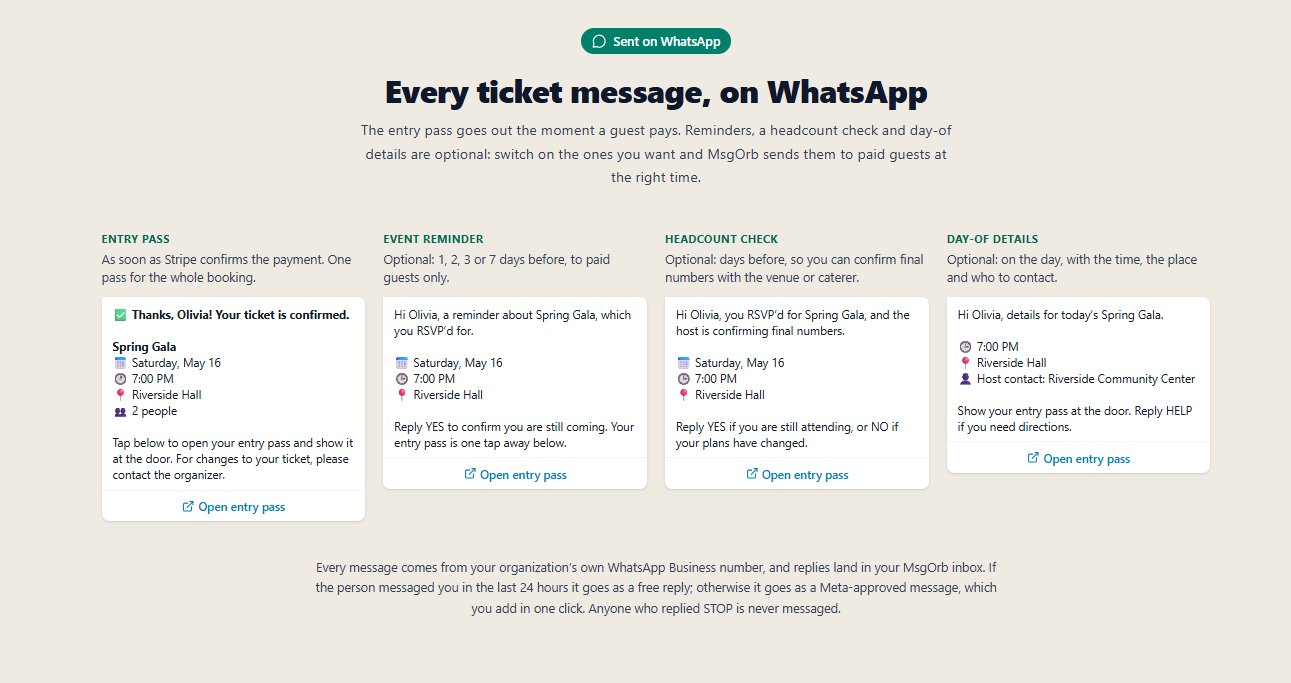
Right after they RSVP, each guest gets their pass on WhatsApp, privately, with their own name:
Hi David, your RSVP for Holiday Open House is confirmed for 3.
📅 Saturday, December 13
🕒 6:00 PM
📍 Oak Hill Community HallTap Open entry pass below and show your pass at the door. You can change your answer on the same page.
On the night, David doesn't spell his name. He opens the message, taps Open entry pass, holds up his phone, and walks in with his family.
What your door team sees (and doesn't)
The door link is built for volunteers:
- They can scan a pass or check a typed code, and see the guest's name and party size for that scan.
- They can't see the full guest list or anyone's phone number, open your account, or change anyone's RSVP.
So you can hand the job to a teenager on the youth team or a first-time volunteer without handing over your guest list.
What changes for you
Imagine 6:05 again. Three volunteers are scanning at once. Each guest takes a couple of seconds. The line is gone by 6:15. Meanwhile, on your dashboard, the Arrived number climbs as people walk in, and the Not arrived filter shows exactly who's still on the way.
- Shorter lines, because scanning beats searching a list.
- More lines when you need them, because every volunteer's phone is a scanner.
- No one gets in twice on the same pass.
- Your guest list stays private.
- You know who actually came, which helps you plan the next event.
Make your next door the easy part
Let every guest carry their own pass on WhatsApp, and let your team check them in with the phones already in their pockets. You can try MsgOrb free at www.msgorb.com.