Church Communication Guide
How to Get an Accurate Event Headcount With WhatsApp RSVPs
It's Thursday night and your event is on Saturday. The caterer wants a final number by morning. You scroll back through the group chat: a few thumbs-up, three "count me in"s, one "we'll try to make it", and a "me + 3?" with a question mark. Is that 40 people or 90?
If you've ever planned a free event (a community cookout, an open house, a graduation party, a fellowship dinner), you know this feeling. Nobody pays, so nobody feels locked in, and the number you plan around is mostly a guess.
Why the usual way leaves you guessing
A group chat is great for talking. It's a poor place to count.
- Replies get buried. Someone says yes on Monday, and by Wednesday it's 200 messages up.
- A reply isn't a person. "Coming!" might be one person or a family of five.
- People change their minds quietly. Nobody posts "actually, we can't come" in front of everyone.
- You end up with a spreadsheet that's out of date the moment you save it.
What you really need is simple: each guest tells you how many people they're bringing, in one place, and the total adds itself up.
How to do it with MsgOrb on WhatsApp
MsgOrb gives your event its own RSVP link. Guests answer from their phone in under a minute, and you watch the real number of people grow on your dashboard.
1. Create the event
Open RSVP & Check-in in MsgOrb and click New event. Type the event name, for example "Fall Community Cookout", and click Create.
2. Add the details
Under Set up the headcount, fill in the date, the start time and the venue. Then choose Most people one guest can bring, including themselves. If families are welcome, you might pick 6. For a dinner with tight seating, maybe 2.
Click Start collecting headcount. Your RSVP link is ready.
3. Share the link where your guests already are
The RSVP Link card gives you three ways to share it:
- Share on WhatsApp opens WhatsApp with the invitation (event name, date and venue) and the link ready to send. Pick your group or chat and press send.
- Download QR for your flier gives you a QR code to print on a poster or flier. People scan it with their phone camera.
- Copy Link lets you paste it anywhere else.
4. Guests RSVP in under a minute
When someone taps the link, they type their name, their WhatsApp number and how many people are coming, including themselves. There's no app to install and no account to create.
As soon as they answer, they get a personal entry pass with a QR code. They can open it any time to change how many people are coming, or to say they can no longer make it.
5. Watch the headcount
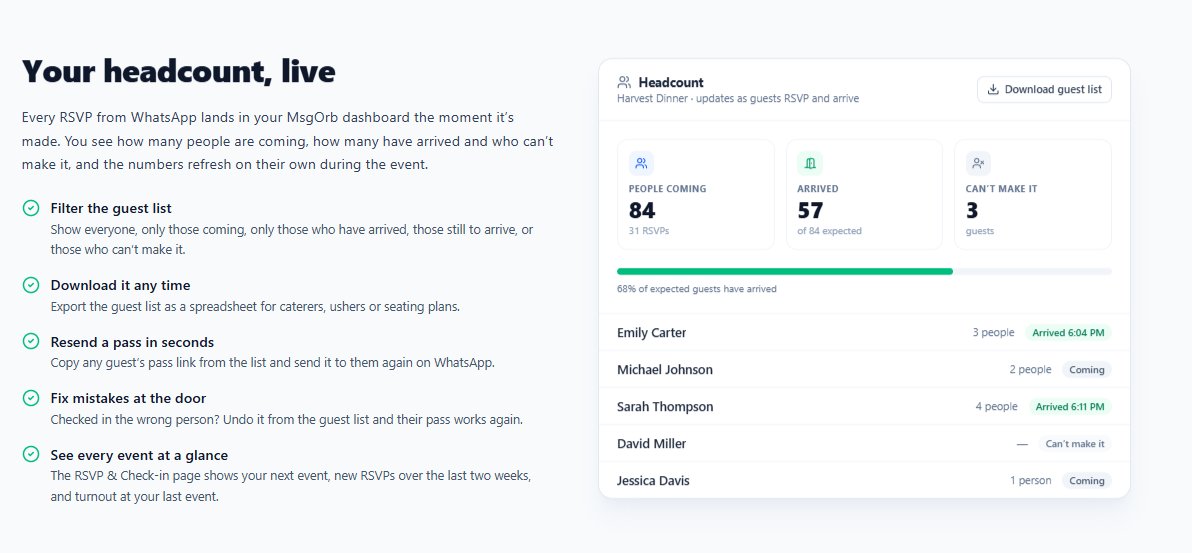
On the event's page, the Headcount section shows three numbers:
- People coming: everyone in every party that's coming. A party of 4 counts as 4.
- Arrived: people checked in at the door on the day.
- Can't make it: guests who said they can no longer come.
Below that, filter the guest list by All, Coming, Arrived, Not arrived or Can't make it. Need the list for the caterer or the venue? Click Download guest list for a spreadsheet copy. The section refreshes on its own every 30 seconds, so the number you see is the number right now.
6. Confirm the final number before the day
A few days out, people's plans change. On the event's page, the Automatic WhatsApp messages card has a Headcount check. Switch it on, pick when it goes out (2 to 14 days before the event), and click Save messages.
Every guest who's coming gets a message asking them to reply YES or NO. A NO takes them off the list straight away, so your number shrinks to the truth before you place the food order.
The Headcount check uses a message that Meta approves first. You add it once from Templates, Built-In Library, RSVP, and every event uses it after that.
What your guests receive
Right after they RSVP, each guest gets their entry pass on WhatsApp, privately, with their own name in it:
Hi Maria, your RSVP for Fall Community Cookout is confirmed for 4.
📅 Saturday, November 8
🕒 12:00 PM
📍 Riverside Park PavilionTap Open entry pass below and show your pass at the door. You can change your answer on the same page.
And a week before, if you've switched on the Headcount check:
Hi Maria, you RSVP'd for Fall Community Cookout, and the host is confirming final numbers.
📅 Saturday, November 8
🕒 12:00 PM
📍 Riverside Park PavilionReply YES if you are still attending, or NO if your plans have changed.
Maria replies NO because her son has a game that day. Her party of 4 comes off your count on its own. You don't have to find her in a chat or fix a spreadsheet.
What changes for you
Imagine Thursday night again, but this time you open MsgOrb and see People coming: 63. You know that number counts every family member, not just the person who replied. You know the four people who dropped out are already off the list. You download the guest list, send it to the caterer, and go to bed.
- You order food and chairs for the real number, not a guess padded "just in case".
- Nobody has to say no in public. Guests change their answer from their own pass.
- You stop keeping a spreadsheet. The guest list builds itself as people RSVP.
- Your link works for everyone, whether they found it in a WhatsApp group, on a flier or in a text from a friend.
And the same entry pass your guests already have is what your door team scans on the day, so the Arrived number fills in as people walk in.
Try it for your next event
Your next free event doesn't have to start with "so… how many of you are coming?" Create the event, share one link on WhatsApp, and let the headcount count itself. You can start free at www.msgorb.com.