Guides
How to Run Kids Check-In With Pickup Codes Sent on WhatsApp
The Ten Minutes Before the Kids Room Opens
The kids room opens in five minutes, and toddlers are already running laps. A dad you've never met is standing at the table with a three-year-old, and your volunteer is squinting at a paper sign-out sheet from last month, trying to read someone's handwriting. Two children in the room have the same first name. Your phone is buzzing with a mom asking if her son got checked in. You're supposed to be inside with the kids, not sorting paper at the door.
Why the Usual Way Breaks Down
A paper list can't tell you who should take a child home. It shows a name and a checkmark. So when someone walks up at the end and says they're here for a child, your volunteer has to make a judgment call they shouldn't have to make.
When two children share a first name, the list gets risky. An adult says, "I'm here for Emma," and the volunteer has to guess which Emma, or leave the door to come and find you. Meanwhile the line keeps growing, and nobody wants to be the one holding everything up.
The notes that matter most, like allergies and care needs, usually live on a clipboard the person at the door can't see. Parents feel it too. They hand over a toddler and walk away hoping the person at the table knows exactly who is allowed to take that child home.
How to Do It With MsgOrb on WhatsApp
With MsgOrb, check-in at the door, the pickup code at the end and the room list in between all live in one place, and it runs on WhatsApp. Here's how to set it up:
- Open Kids Check-in, name the program and click Create. Give it a name your parents will recognize, like Sunday Kids or Summer Camp. This is the page you'll come back to every week.
- Share the Registration link on WhatsApp. Parents register once with their children's details, including allergies and care notes. After that the details stay on file, so you're not collecting the same information every Sunday.
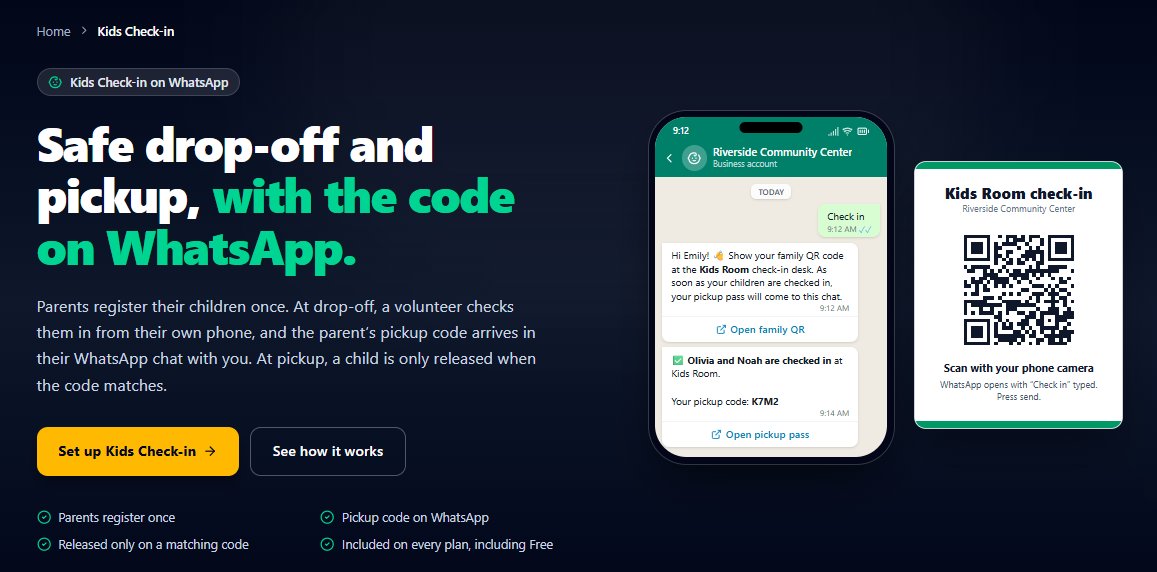
- Print the Desk sign. Parents scan it with their phone camera and send Check in on WhatsApp. Right back in the same chat, they get their family QR code. There's nothing to download and nothing to print at home. It all happens in the app they already have open.
- On the day, click Open today's station and send your volunteers the station link. Tell them the 6-digit PIN in person, not in a group chat, so a forwarded link is no use to anyone else. The link and PIN stop working at midnight, so you open a fresh station each day you run check-in.
- Volunteers scan the family QR, tick the children who are here and tap Check in. It takes a few seconds per family. The station shows the family's 4-character pickup code, which the volunteer writes on each child's sticker, and the parent gets the same code on WhatsApp straight away.
- At pickup, the volunteer enters the code on the Pick up tab. If it matches, the station lists the children under that code and they're released. If it doesn't, the station says No match. Do not release. No guessing and no arguing at the door. The rule is the same for everyone, which makes it easy for a volunteer to hold.
- Use the Room tab during the session. It lists the children in the room right now, grouped by age, with allergy and care flags highlighted. If a parent comes back early or another leader steps in, the information is in front of them, not on a clipboard in the hallway.
Parents who scan the desk sign get their messages as replies, because they messaged you first, and those replies count toward the 1,000 free replies Meta includes each month for your WhatsApp number. For parents who didn't, you can add the Kids Check-in Confirmation message from the Built-In Library in Templates once, so Meta approves it. Kids Check-in works without it: the volunteer simply writes the code on a slip for that parent.
What Your Parents Receive
Every message goes to each parent privately on WhatsApp, with their first name. When Dana scans the desk sign and sends "Check in," this comes back right away:
Hi Dana! 👋 Show your family QR code at the Sunday Kids check-in desk.
As soon as your children are checked in, your pickup pass will come to this chat.
She taps Open family QR and shows it at the desk. A moment after the volunteer checks her children in, a second message arrives:
✅ Emma and Noah are checked in at Sunday Kids.
Your pickup code: K7Q2
Show your pickup pass when you collect them. Only share it with the person collecting.
At the end of the session, Dana opens her pickup pass and shows the code. The volunteer types it into the Pick up tab, it matches, and the children go home. If someone shows up without the code, the station says No match. Do not release. Nobody has to decide anything in the moment.
What Changes for You
The door gets calmer. Instead of one volunteer with a handwritten sheet and a growing line, you have a scan and a tap. The pickup code decides who goes home with whom, so the hardest moment of the morning becomes the easiest one. You stop being the person everyone has to find when something is unclear.
You also have the information you need in front of you. The Room tab shows who is in the room, with allergy and care flags, so nobody is hunting for a clipboard. And parents stop asking whether their child got checked in, because the answer has already arrived on their phone.
Best of all, you get to be inside the room instead of at the table. Check-in runs itself, pickup runs on a code, and the safety rules don't depend on a volunteer remembering anything from last month.
Ready to Try It?
You can set up your first kids program and run check-in on WhatsApp for free. Visit www.msgorb.com to create your free account. It only takes a few minutes to get started.