Guides
How to See Who Actually Got Your WhatsApp Announcement
"Did Everyone Get the Message?"
Imagine it's Thursday afternoon. You sent the update about Saturday's change of venue on Monday, and now three people have asked where the event is. Did they miss it, or did it never reach them? You scroll back through your phone, but a sent message tells you nothing about who actually got it. Someone on the committee asks, "Did everyone get the update?" and the honest answer is: you don't know.
Why the Usual Way Leaves You Guessing
When you post an announcement in a group chat, you see one message go out and then silence. Some people read it, some muted the group weeks ago, and some never scrolled up far enough. Nothing tells you which is which.
Sending messages one by one is no better. After forty texts, you can't remember who you've done, and a number with one wrong digit fails without a word. You only find out when that person turns up at the old venue.
Even when a message does arrive, you can't tell whether anyone opened it. A quiet group chat looks the same whether 90 people read the update or 9 did. So you send reminders to everyone, just in case, and the people who read it the first time start tuning you out.
And when something goes wrong for a lot of people at once, you can't see why. Was it the wording? The numbers? The timing? Without a reason, you can't fix it, so you send the whole thing again and hope.
How to See It in MsgOrb
MsgOrb sends each announcement to each person privately on WhatsApp, and keeps a record of every one of those messages: whether it was sent, delivered and read, or why it failed. Here's where to look.
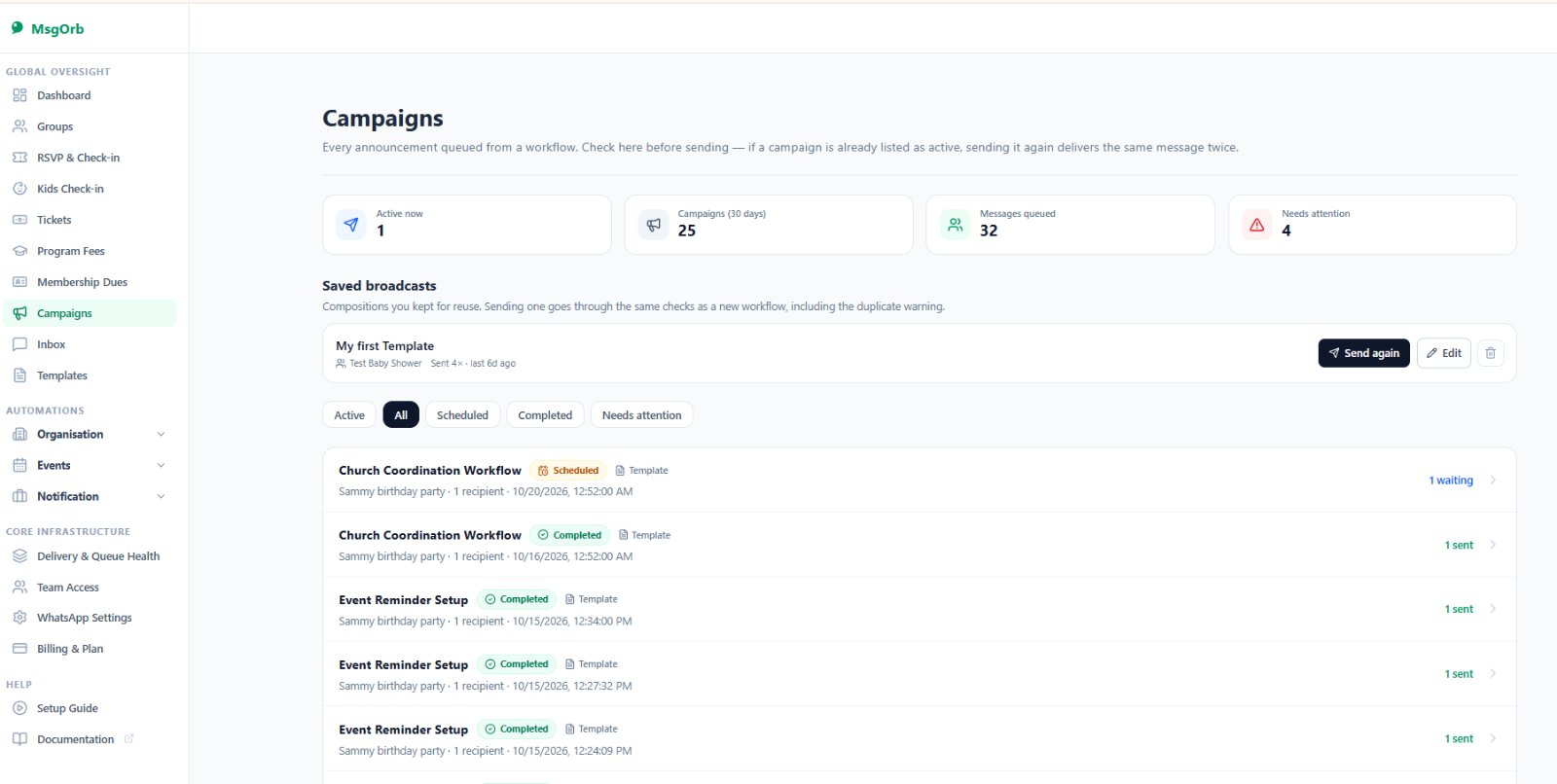
- Open Campaigns. Every announcement you've sent or scheduled is one row, with how many people it went to and where it stands: Scheduled, Sending, Completed, Partly failed or Failed. At a glance you can see which went out cleanly and which need a look.
- Click an announcement to open it. Four numbers sit at the top: Recipients, Sent / Delivered, Waiting and Failed. Below them is every person it went to, with their number, the status of their message, how many attempts were made and the detail for anything that went wrong. That's the answer to "did everyone get it?", person by person.
- Read the reason for any failure. MsgOrb shows WhatsApp's own reason, and identical reasons are grouped and counted. If 30 messages failed for the same cause, you see it once, with "30×" next to it, instead of 30 rows to work through. One reason usually means one fix.
- Fix the cause, then press Retry. Once the cause is dealt with, click Retry on the announcement. Only the failed messages are sent again. Everyone who already received it is left alone, so nobody gets a duplicate.
- Pause, cancel or edit before it goes. A scheduled announcement can be paused and resumed, or its unsent messages cancelled, from the same page. If nothing has been sent yet and the send time is still ahead, you can edit it too. That's handy when the venue changes again the night before.
- Follow one person in Delivery & Queue Health. When someone says "I never got it," search for their phone number. You see each message to that number with the time it was sent, delivered and read, plus WhatsApp's reason if it failed. Now you can tell them exactly what happened.
- See it in the conversation too. In the Inbox, every person has their own thread with your number. A message that didn't make it shows as a red bubble reading Not delivered, with the reason underneath. If that person replies later, their reply lands in the same thread.
The Four Reasons You'll See Most, and What to Do
Most failures come down to a handful of causes. Here's what each one looks like in MsgOrb and how to fix it.
"This number cannot receive WhatsApp messages." The number has no WhatsApp account, or one digit is wrong. Open the contact, check the number and the country, and correct it. Then press Retry on the announcement. If the person truly isn't on WhatsApp, this is your cue to reach them another way.
"Outside the 24-hour reply window." A message you type yourself only reaches people who have messaged your number in the last 24 hours. For everyone else, WhatsApp requires a message template that Meta approves first, usually within 15 to 30 minutes. Create the template once, then send the announcement again using it. MsgOrb checks your group before an immediate send and warns you when few people have messaged recently, so you can catch this before anything fails.
"Template is not approved on WhatsApp yet." The wording you picked is still waiting for Meta. Open Templates, click Sync Status to check, and once it shows Approved, press Retry.
"Business eligibility payment issue." Meta charges for template messages and bills your WhatsApp Business Account directly. If no card is attached to that account, every template send is refused. Add the card in your Meta Business settings, then press Retry. It's a one-time fix.
The pattern is always the same: read the reason, fix that one thing, press Retry.
Delivered but Not Read
Delivered means the message reached the person's phone. Read means they opened it, but only if they have read receipts switched on in WhatsApp. Plenty of people turn them off, so a message that stays at Delivered may well have been read.
That makes the list useful in a calmer way. If an update matters, like a venue change or a cancelled session, look at who is still at Delivered a day later and follow up with just those people, privately. Everyone who already read it is left in peace, and the people who missed it get a second nudge.
What Your People Receive
Your members see none of this. Each of them simply gets the update privately on WhatsApp, with their own first name:
Hi Grace, a quick update for Saturday's picnic: we've moved to Pavilion B at Riverside Park because of the rain forecast. Same time, 11:00 AM. See you there!
Grace reads it, and her message moves from Sent to Delivered to Read on your Campaigns page. If her number had a typo, you'd see the reason the same afternoon and reach her before Saturday instead of after.
A Quick Check Before Every Big Announcement
A few seconds before you press send saves an afternoon of follow-up:
- Send it to yourself first. Make a small group with only your own number and send the announcement there. You see exactly what your members will see.
- Use an approved template for anything that goes to people who haven't messaged you today. That's almost every scheduled announcement.
- Open the announcement in Campaigns an hour after it goes out. If the Failed number isn't zero, read the reason while there's still time to fix it.
What Changes for You
You stop guessing. When the committee asks whether everyone got the update, you open the announcement and answer with a number: 118 delivered, 2 failed, and here's why. That's a very different conversation from "I think so."
Problems get smaller. A failure with a clear reason is usually a five-minute fix. Fixing it once and pressing Retry beats resending to the whole group and annoying the people who already read it.
And you get your evenings back. You're not scrolling through old texts trying to work out who you missed. The record is already there, for every announcement and every person.
Ready to Try It?
You can send your first announcement and see exactly who received it on MsgOrb's free plan. Visit www.msgorb.com to create your free account. It only takes a few minutes to get started.