Guides
Back to School Communication: A Plan That Keeps Parents Informed Without the Overload
Build a back to school communication plan with class groups, scheduled reminders and Text JOIN so parents get the right information at the right time.
Every August and September, school offices face the same flood. Forms for medical history, bus routes, lunch accounts, uniform lists, and welcome letters all land in parents' inboxes at once. Many families never open half of them, and a critical date gets buried under a dozen other notices. By the second week, the front office is fielding the same questions it already answered in an email.
A good back to school communication plan does two things. It groups information by the people who need it, and it spaces messages out so each one gets read. Parents need class-level details, a short run of reminders for the first weeks, and a simple way to join the right list. Staff need to know who received what. Plenty of schools already use WhatsApp for this, because families check it daily. The challenge is using it without turning the phone into a noisy group chat.
Why the usual approaches run out of steam
Most schools start with one of three tools. Each has a limit you will feel by October.
A single parent group chat. Easy to start, but it fills up fast. Parents mute it, staff can't control who reads what, and private questions get lost among a hundred unrelated messages. WhatsApp group chats also do not show you who has read anything.
A broadcast list. Sending one message to a list keeps each reply private, which is good. The catch is that WhatsApp limits how many people a single broadcast list can hold, and some recipients never receive a message because they have not saved your number. Our guide to WhatsApp broadcast list limits explains why. Lists also don't let you split families by class.
Copying numbers into a phone by hand. This works for twenty families and breaks down at two hundred. Typos and missing country codes cause silent failures you will never see.
The general fix is to organize contacts into small groups, send each group only what concerns them, and schedule the reminders in advance so the office isn't sending them by hand. Keeping your list clean matters too, since numbers that were typed wrong or are no longer active never receive anything. Our article on why WhatsApp messages fail to deliver walks through that check.
A simple back to school plan
Work through these steps over four to six weeks before the first day.
- Set up one group per class or grade. Parents of Grade 3 get Grade 3 news. Each family can belong to more than one group, such as a class group and a sports group.
- Collect sign-ups from new families. Print a QR code on enrollment packets and at the front desk so families can join themselves.
- Write the core messages once. Cover the first day, the bus schedule, supply lists, and the open house. Save them as reusable templates.
- Schedule a short reminder run. Two or three reminders in the final week before school, then one on the first morning, and one for the first week's special events.
- Ask questions where they can be answered. Use a yes/no reply for permission slips and a single response for headcounts, rather than asking parents to write long emails.
- Review who received what. After each send, check which numbers failed so the office can follow up.
How to do this with MsgOrb
MsgOrb is WhatsApp automation for schools. Messages come from your school's own WhatsApp Business number, and parents don't install anything. Here is how to set up the plan above.
Create a group for each class. Go to Groups and choose Create Group. Name it something like "Grade 3, Room 12." Add families with Add Member, or import a spreadsheet of names and phone numbers. Each family can be in several groups; MsgOrb counts them as one contact.
Let new families join themselves. Turn on Text JOIN for a group from that group's page. Families send JOIN to your school's WhatsApp number, or scan the printed QR sign on the group page, and are added to the list with their consent recorded and a welcome reply sent. Read our note on Text to JOIN for schools and churches for the details.
Schedule the reminders. Go to Automations, pick a workflow, choose the class group, choose an approved template, and click Schedule for Later. You can set a repeat so one message goes out each week during the first month. Track each send on the Campaigns page, where you can pause, resume, or cancel it.
Use a school template. Start from the Built-In Library and pick a school event reminder. You can edit it before submitting it to Meta for approval. Browse the starter options on our school templates page.
Let the team share the load. Invite a sub-admin for the front office from WhatsApp Settings, so messages don't depend on one person.
Check delivery. Open Delivery to see each message and Meta's reason for any failure. Numbers marked "Not on WhatsApp" can be selected and removed from the group.
Here is a sample reminder for a class group:
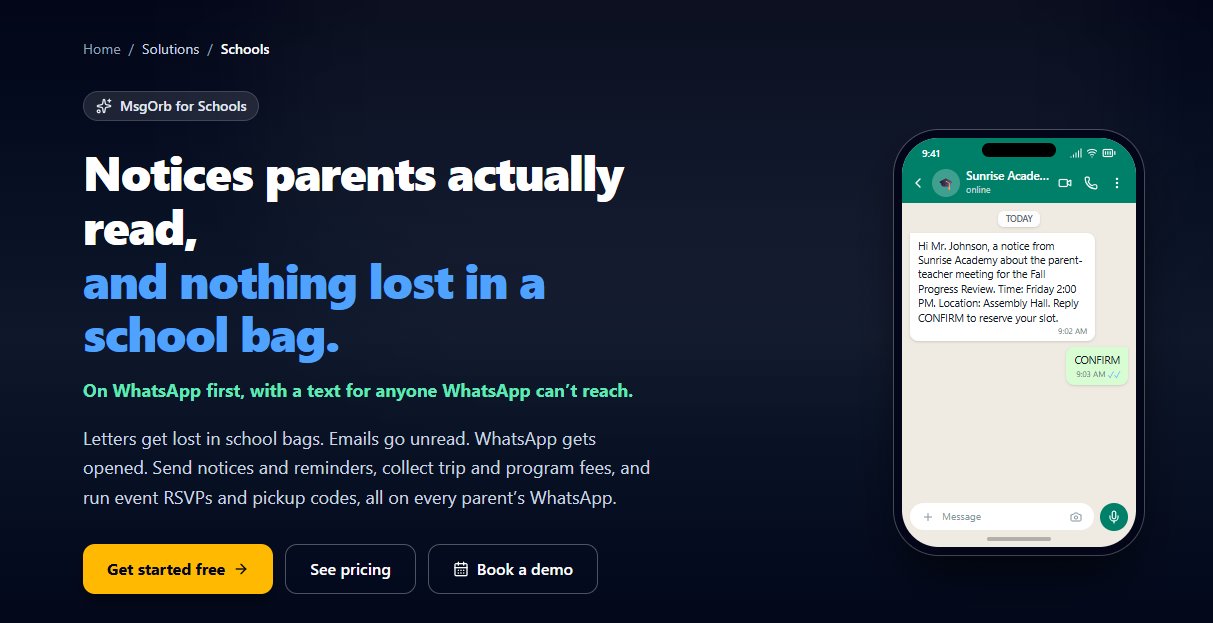
Hi Emily, this is Maple Grove Elementary. Grade 3 (Room 12) starts on Tuesday, September 8, 2026 at 8:15 AM. Please drop off at the east gate. Reply YES to confirm your child's bus seat or CHANGE if you need a different stop. Thank you, and welcome back!
Frequently asked questions
Do parents need to install anything? No. They receive messages in their normal WhatsApp, from the school's number.
Can I send different messages to different classes? Yes. Each class is its own group, so you can send Grade 3 one message and Grade 5 another.
What if a family doesn't use WhatsApp? Keep the traditional channels for them, such as a printed notice or a phone call. WhatsApp works best as one part of your plan.
How do I avoid overwhelming parents? Limit each group to a few messages per week, schedule them in advance, and include only what that group needs.
Ready to set up your class groups and first reminders? Try MsgOrb free.